
How To Use The ClickDesigns AI Textwriter
In this article, you'll learn how to seamlessly use ClickDesigns' AI Textwriter feature for your designs.
STEP 1:
After logging into your ClickDesigns and opening up your dashboard, go ahead and launch the "Templates" section to open up the "Pages" category.

For this tutorial, we're going to edit on a template from the "Page Blocks" category under "Pages."
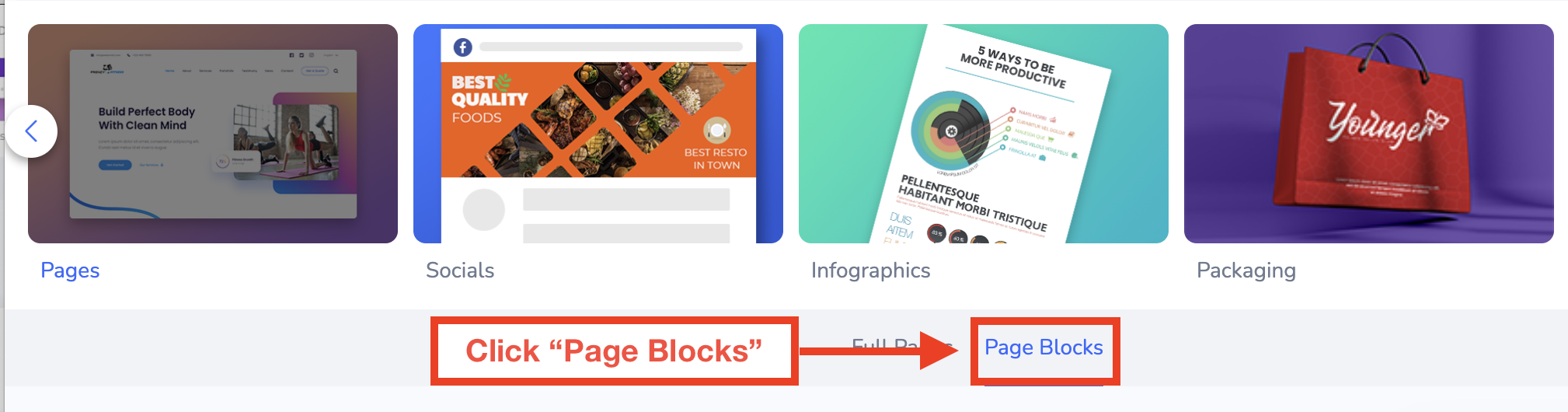
Choose a template category, and once you find a template you'd like to use, click on the "Edit" icon by hovering over it.

STEP 2:
After launching the ClickDesigns Editor with the chosen template, open up the "Text" category, and once you do, click on the button that reads "Open Text AI Writer."

When this is open, the ClickDesigns AI Textwriter is going to give you the option to write a description for your product, keywords, and even the type of text you want it to generate.

The ClickDesigns AI Text writer can write you a Product Name, Call To Action, Tagline, Keywords, Headline, Paragraph, Feature Stack, and even Benefit Bullets!
STEP 3:
Once you've filled up each section to your liking, go ahead and click on "Generate AI Text" below.

In this case, for my product, I choose the ClickDesigns AI Textwriter to write me a Freestyle Description, Product Name, Call To Action, Tagline, Keywords, and Headline.

After clicking on "Generate AI Text" the ClickDesigns AI Textwriter is easily going to generate text for your product designs! Simply click on the "Plus" icon in each section to add it to your canvas.

STEP 4:
Feel free to customize your design to your liking using your elevated text generated by the ClickDesigns AI Textwriter!

And Voila! That's how easy it is to seamlessly make use of the ClickDesigns AI Textwriter for your designs.